Resource Planner Blog
Time Tracking in Resource Planning: From Planned Capacity to Actual Work
Resource planning tells you what should happen. Time tracking tells you what actually happened. When those two perspectives live in the same system, teams can plan future work using real evidence instead of assumptions.
That is why we added time tracking to Resource Planner. The important part is not simply that there is now a timer. The real value is the connection between planned capacity, actual work and better future planning.
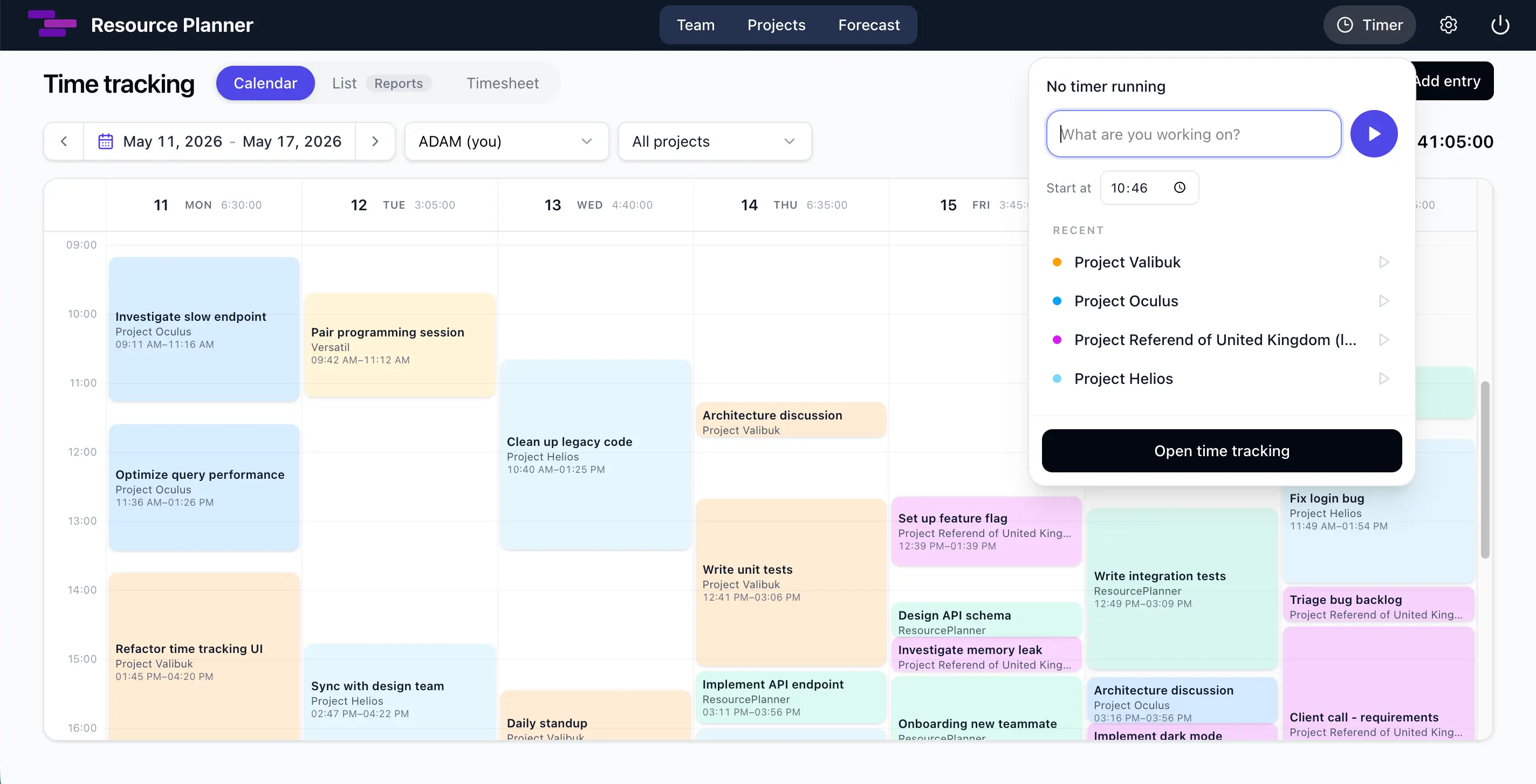
The weekly calendar shows when work happened, while the timer in the header makes it easy to start tracking against a recent project or task.
Why time tracking belongs inside a resource planning tool
A capacity plan is a model of the future. It reflects the information available when the plan was created: expected effort, deadlines, availability, project priorities and the team members assigned to the work. Even a carefully prepared plan still contains assumptions.
Actual work provides the missing feedback. It can show that a type of task regularly takes longer than expected, that meetings consume more capacity than the plan allowed for, or that work is being spread across more projects than anticipated. Those observations make the next plan more realistic.
Keeping project time tracking inside Resource Planner shortens that feedback loop. The same workspace can answer two related questions:
- What have we planned for our people and projects?
- Where is the team actually spending its time?
This does not turn planning into an automatic formula. Context still matters, and a manager still needs to interpret the data. But it creates a much stronger basis for capacity planning than estimates alone. If you are new to the subject, our guide to resource and capacity planning explains how workload, availability and priorities fit together.
Record actual work without leaving the planning context
The timer is available from the main Resource Planner header, so starting a time entry does not require navigating to a separate application. A team member can describe what they are doing, choose a start time and connect the entry to a project or a specific task. Resource Planner also suggests recent work targets and lets the user search the projects and tasks available to them.
This connection is useful because a duration without context says very little. “Two hours” becomes actionable planning data when it is attached to a project, task and description such as “Investigate slow endpoint” or “Architecture discussion.”
There is still room for normal working habits. People can:
- Start and stop a live timer from the header.
- Change the description or project while their timer is running.
- Add completed time manually when they did not start a timer.
- Correct the start, end, description or work target of their own entries.
- Delete an incorrect personal entry.
The Calendar view places those entries on a weekly or monthly timeline. A person can select a past time range to create an entry, open an existing entry to correct it, or move their own entry to the right time. Daily and range totals make the recorded effort easy to scan, while person and project filters keep larger workspaces manageable.
The three time-tracking views are designed to answer different questions:
| View | Question it answers |
|---|---|
| Calendar | When did the work happen? |
| List | What was done, by whom, and what is active now? |
| Timesheet | How much time accumulated by project and day? |
See who is working on what without another status message
One of the most practical parts of the feature is the List report. Active time entries appear at the top with an Active label, the work description, project, team member and a live elapsed duration.
For a manager, this creates a quick view of current activity across the people they are allowed to manage. Instead of messaging several teammates just to ask, “What are you working on right now?”, the manager can check Resource Planner first. That removes a small interruption for the manager and for every person who would otherwise need to reply.
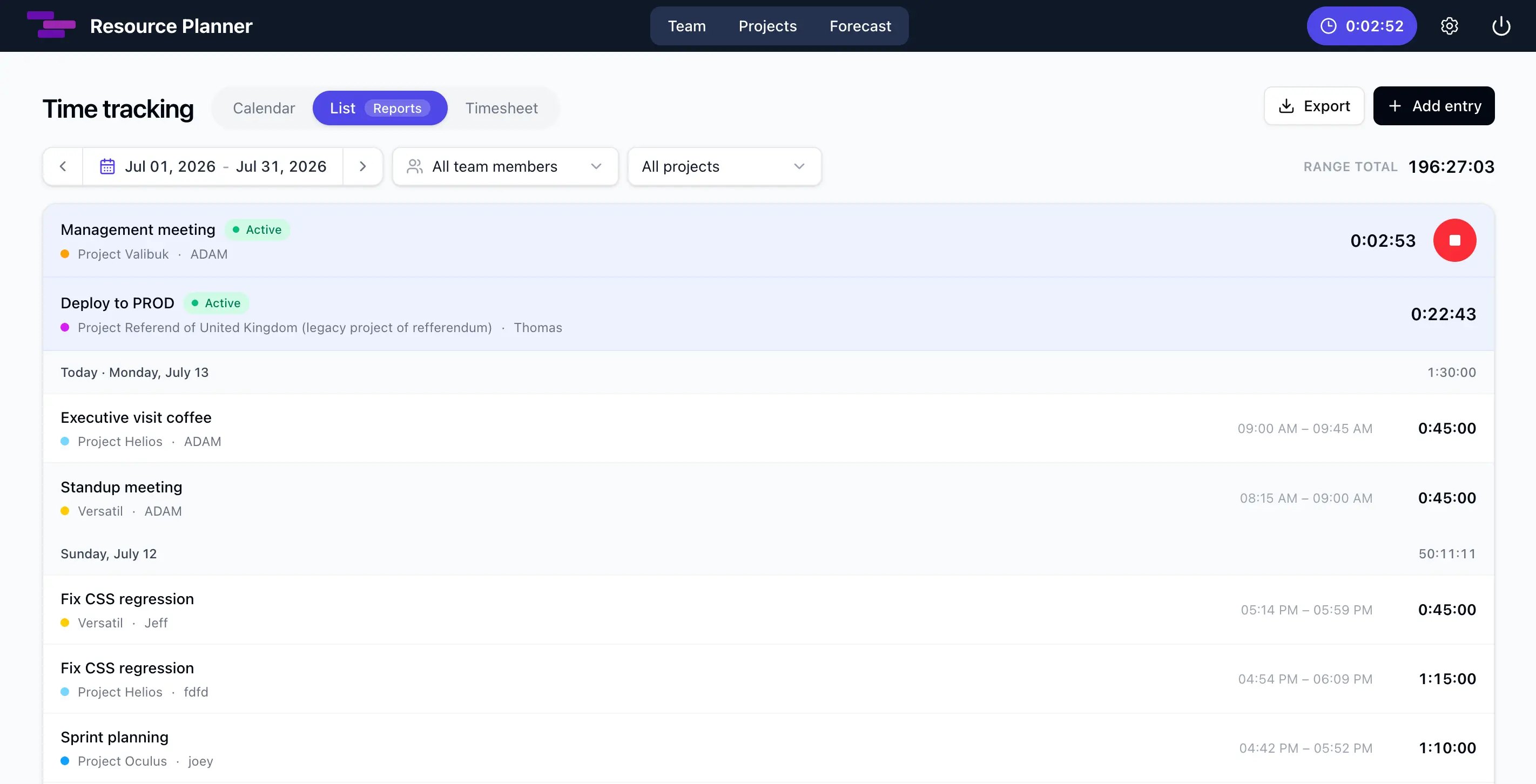
Active entries are pinned above the completed work log, making it easy to see who is working on what and how long the current session has been running.
This visibility follows the existing workspace access model. Administrators can review the workspace team, managers see the people within their management scope, and members see their own time. Visibility does not mean taking control of another person's records: each user can edit or stop only their own time entries. In the screenshot, the current user has a stop button on their own active timer, while the other team member's active entry is read-only.
The goal is shared operational context, not surveillance. A running timer is a lightweight signal about current work. Managers can use it to reduce avoidable status pings, understand where attention is going and decide whether a conversation is actually necessary.
Turn recorded activity into a useful team timesheet
Individual entries become more useful when they can be reviewed as a pattern. The Timesheet view groups recorded time by project and shows the duration for each day in the selected range. It also calculates daily totals, project totals and a total for the entire range.
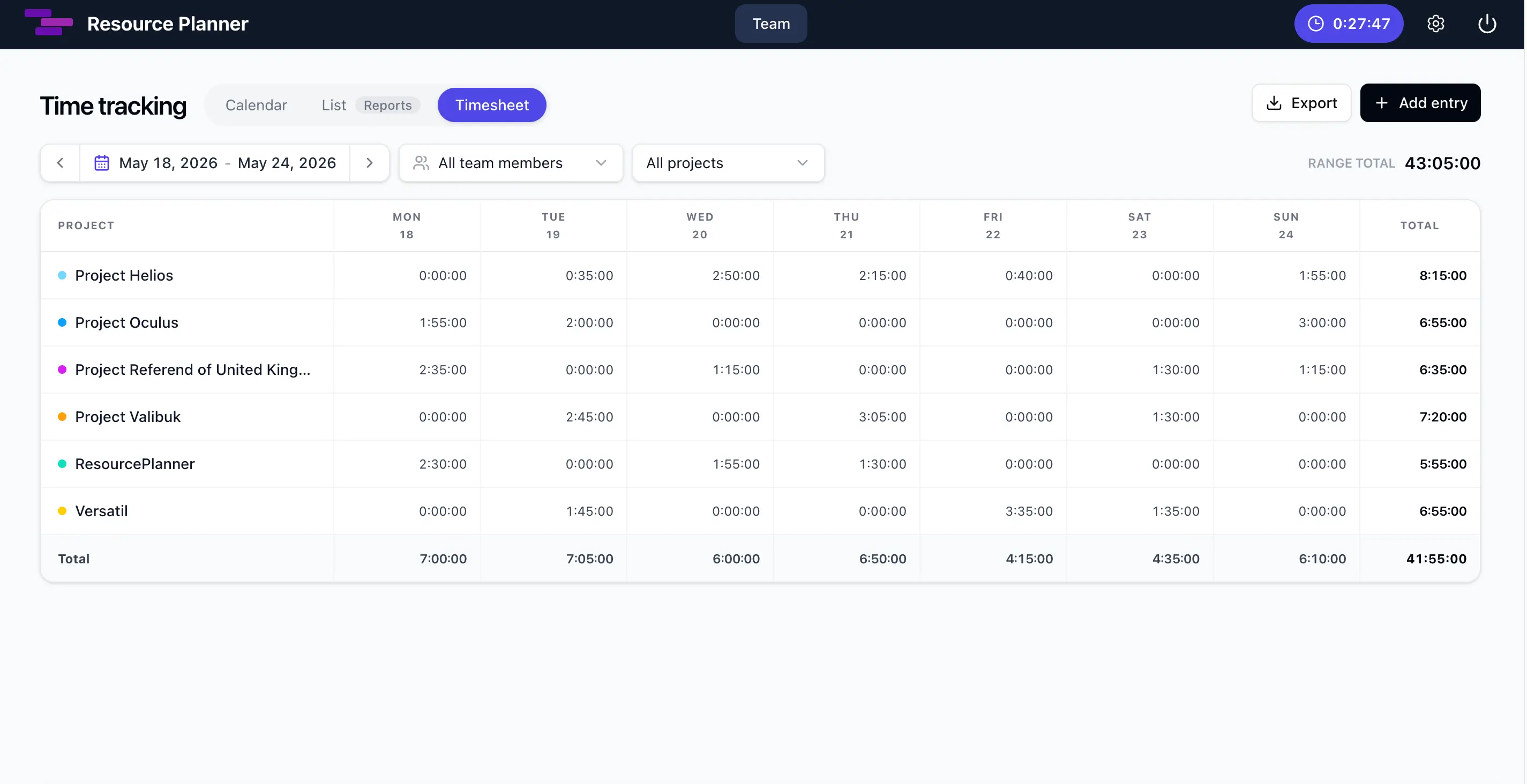
The team timesheet turns individual entries into project-by-day totals that can be filtered and exported for further analysis.
Managers and administrators can select multiple team members and projects, then review a week, month or custom reporting period. Presets for common periods make recurring reviews faster. The List and Timesheet reports can also be exported to Excel. The exported data preserves useful detail such as the person, project, task, description, start and end times, and durations where relevant.
These reports are not only a record of the past. They provide evidence for future decisions. If a project repeatedly consumes more hours than expected, its next estimate may need more capacity. If a category of work appears frequently but was missing from the plan, it should probably be represented in future allocations. If work is consistently split across too many projects, the team may need clearer priorities.
That kind of review fits naturally into a weekly resource planning meeting. Rather than discussing the next schedule from memory, the team can bring both the current plan and recent actual work into the conversation. The resource management glossary also explains related concepts such as time tracking, utilization and variance.
Close the loop from planning to actual work
A simple planning feedback loop now looks like this:
- Plan: Allocate available capacity to the projects and tasks that should happen.
- Record: Track the work that actually happens with the timer or manual entries.
- Review: Use the Calendar, List and Timesheet views to understand timing, current activity and project totals.
- Improve: Apply what the team learned when estimating effort and allocating capacity for the next period.
One week of data will not answer every planning question. Over time, however, actual work creates a useful history. Estimates can become more grounded, recurring unplanned work becomes visible, and conversations about capacity can rely less on intuition.
Frequently asked questions
What is time tracking in resource planning?
Time tracking in resource planning is the practice of recording actual work against the same people, projects and tasks used to plan capacity. Planning describes expected allocations; time entries provide evidence about where effort was really spent.
Why combine time tracking and capacity planning?
Combining them creates a feedback loop. Teams can use actual project time to improve future estimates, recognize work that was missing from a plan and make more realistic capacity decisions without reconciling separate systems.
Can managers see active team timers?
Yes. Managers can use the List report to see active entries for team members within their permitted management scope, including the description, project and live elapsed duration. They can review those entries but cannot edit or stop another person's timer.
Can time be entered manually and exported?
Yes. Users can add completed entries manually and correct their own records. List and Timesheet reporting data can be exported to an Excel workbook for further analysis or sharing.
Plan the future with evidence from the past
Resource Planner already showed what the team intended to do. Time tracking adds the other half of the picture: what the team actually did.
The result is more than a running clock. It is a practical connection between planned capacity, day-to-day work and the next planning decision. That connection helps teams replace avoidable status questions and unsupported assumptions with shared, useful data.