Resource Planner Blog
ResourcePlanner Zapier and n8n Integrations Are Live
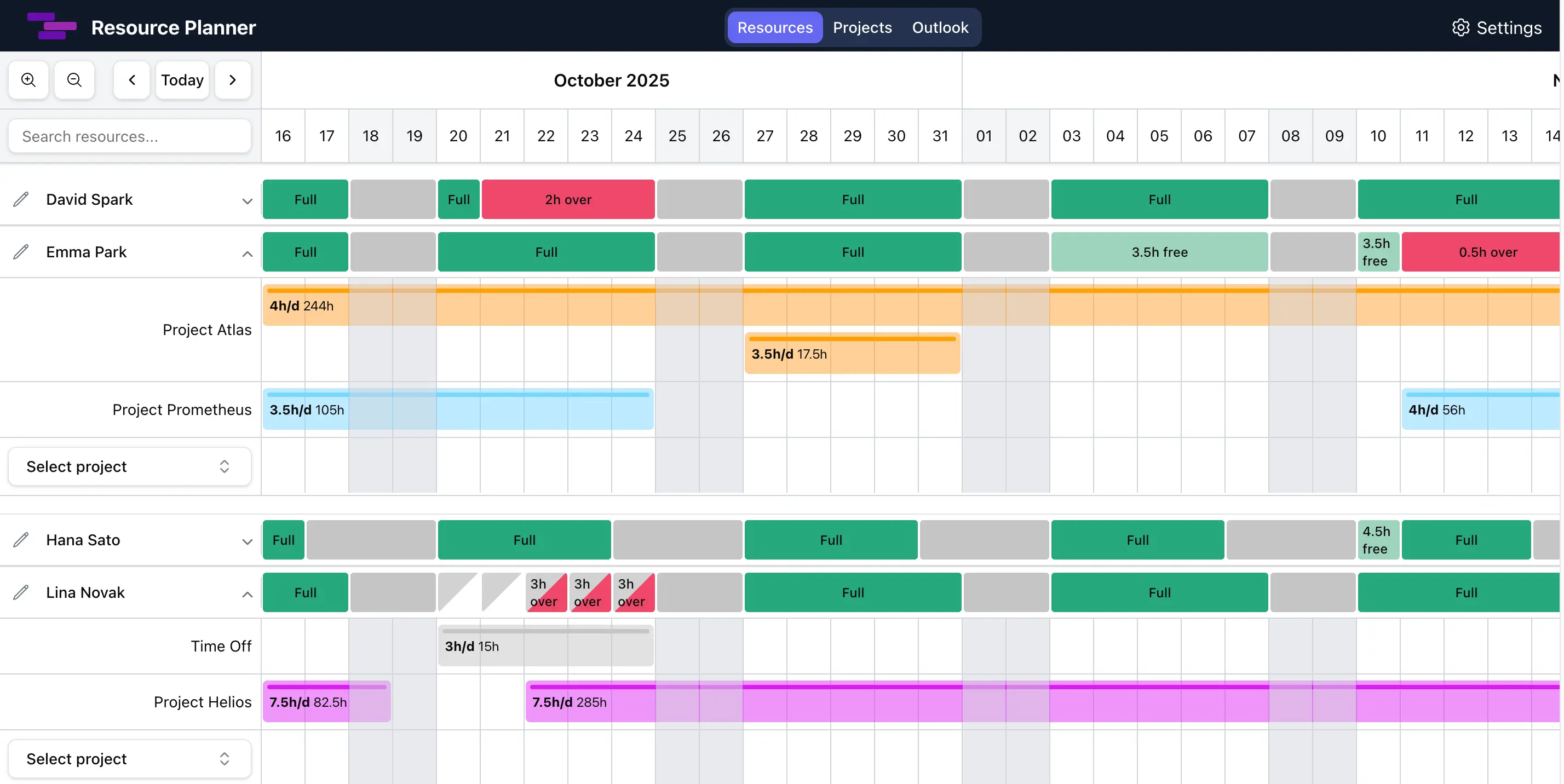
ResourcePlanner now has more ways to connect Resource Planner with the rest of your operations stack. The new release includes a public Resource Planner Zapier integration, an n8n community node for Resource Planner, continued support for MCP AI agent workflows, and free-plan access to REST API access and webhooks.
TLDR: you can now connect ResourcePlanner to Zapier, n8n, AI assistants, custom scripts, internal tools, and downstream systems without starting from a paid plan. This matters for capacity planning because resource plans are most useful when they stay close to sales, delivery, time off, and reporting workflows.
ResourcePlanner is more ready for the AI project management era than ever before: AI agents can work through MCP, automation platforms can move planning data through Zapier and n8n, and teams can still rely on REST API access and webhooks when they need deterministic system-to-system integrations.
What launched
| Feature | Best for | Status |
|---|---|---|
| Zapier Resource Planner app | No-code automation with apps such as Pipedrive, Slack, Airtable, and many other Zapier apps | Live on Zapier, currently marked Beta |
| n8n Resource Planner node | Self-hosted or technical workflow automation for projects, resources, and assignments | Published on npm as n8n-nodes-resourceplanner |
| MCP integration | AI agents and LLM assistants that need secure access to Resource Planner data | Available for every workspace |
| REST API access | Custom scripts, internal tools, and direct server-to-server automation | Available for every workspace |
| Webhooks | Reacting to assignment changes in external systems | Available for every workspace |
| Time Off types | Vacation, sick leave, training, and other absence categories | Included in the free plan |
| Weekly planning | Higher-level planning by week instead of day | Available as a personal planning setting |
| Percentage capacity input | Faster allocation when you think in utilization instead of hours | Works with values such as 20% |
You can review the full integration surface in the Resource Planner integrations overview or compare plans on the pricing page.
ResourcePlanner is now available on Zapier
Resource Planner is now listed in Zapier's app directory as a Zapier integration. At launch, the app is marked Beta and supports workflows around projects, resources, and assignments.
The Zapier integration is useful when ResourcePlanner should react to another business app without custom code. A typical example is the published Pipedrive template: when a project or deal in Pipedrive enters a selected stage, Zapier can create a project in Resource Planner. This keeps delivery planning closer to the sales pipeline and reduces the manual work of copying accepted work into a capacity planning tool.
The public Zapier listing also includes a Slack vacation digest template. That workflow can send Slack channel messages for upcoming vacations in Resource Planner every week. It is a simple example, but it points to a larger idea: resource planning data should be able to move into the tools where teams already communicate.
The Resource Planner Zapier app currently exposes automation building blocks such as:
- New Project, New Resource, and New Assignment triggers.
- Create Project, Create Resource, and Create Assignment actions.
- Find Project, Find Resource, and Find Assignment searches.
- Assignment fields for project, resource, date range, hours per day, notes, task title, and task description.
To connect Zapier, generate an API access key in Resource Planner from Settings > API access for REST clients, then paste that key into Zapier. The Zapier app uses the same REST API access key described in the REST API access guide.
ResourcePlanner now has an n8n community node
Resource Planner also has an n8n community node published on npm as n8n-nodes-resourceplanner. The latest version at release time is 0.1.4.
The n8n node lets self-hosted n8n workflows work with Resource Planner projects, resources, and assignments. It is designed for teams that want more control than a no-code Zapier workflow, but still prefer a visual workflow builder over a fully custom integration.
The node supports operations for:
| Resource | Example operations |
|---|---|
| Projects | Create, get, list, update, and delete projects |
| Resources | Create, get, list, update, and delete resources |
| Assignments | Create, list, update, and delete assignments |
Common n8n use cases include daily assignment digests, syncing new projects from another system, creating test resources, sending schedules to Slack or email, or building custom reporting flows around project allocation. Templates for n8n are coming soon.
The n8n node also uses the Resource Planner workspace API access key. Use the REST client key, not an MCP key or webhook secret.
MCP, API access, and webhooks are now easier to try
As part of this release, MCP keys, REST API access keys, and webhooks are available on every workspace, including free workspaces. This is an important change because integrations are much easier to evaluate when teams can test them with real workspace data before upgrading.
Use MCP integration when you want AI agents to answer questions or perform resource planning actions through the Model Context Protocol. Examples include:
- "Who is available next week?"
- "Show me vacations in December."
- "What projects would be affected if Tom takes time off?"
- "Give me next week's assignments grouped by project."
Use REST API access when you want predictable server-to-server calls. The REST API can list and create resources, projects, and assignments, and it is the foundation for the Zapier and n8n integrations.
Use webhooks when Resource Planner should notify another system after assignment activity. Webhooks can send assignment-created, assignment-updated, and assignment-deleted events to your configured endpoint.
In practical terms, this means a free workspace can now test automation paths such as:
- Create a Resource Planner project from Pipedrive through Zapier.
- Pull assignments into n8n and send a digest to Slack.
- Ask an MCP-compatible AI assistant to summarize next week's capacity.
- Use a script to create assignments through the REST API.
- Push assignment changes into an internal dashboard through webhooks.
Time Off types are now part of the free plan
Different Time Off types are also now part of the free plan. Admins can configure absence categories such as vacation, sick leave, training, unpaid leave, or any other time-off policy your team uses.
This is useful because resource planning is not only project allocation. Real capacity also depends on who is working, who is out, and what kind of absence is planned. A team member on vacation, a team member in training, and a team member on sick leave may all reduce capacity, but managers often need to distinguish them for reporting and approval workflows.
With Time Off types available in the free plan, small teams can model availability more accurately from the start. That also improves automation quality. For example, a weekly Slack vacation digest from Zapier or a vacation-impact question through MCP is only useful when time off is represented cleanly inside the planning workspace.
Weekly planning and the percentage capacity trick
Resource Planner now also supports weekly planning for people who prefer a higher-level planning mode. Weekly planning is a personal setting, so turning it on changes your own planning experience without changing how other workspace members work.
In weekly planning mode, selected date ranges are aligned to Monday-start weeks. When you enter weekly hours, Resource Planner converts that value into the daily hours needed for storage and scheduling calculations. For example, if a person works five business days and you plan 8 hours for a week, Resource Planner stores that as the equivalent daily allocation across the person's working days.
The percentage capacity trick is designed for the same kind of high-level planning. Instead of calculating hours manually, select a resource, open the assignment form, and type the percentage directly into the hours input.
The important detail is the % character. Write the number first, then add the percentage sign after it, for example 20% or 50%. As soon as Resource Planner sees the % character in the input, it treats the value as a percentage of the selected resource's weekly capacity rather than as a raw hour value.
If the selected person has a weekly capacity of 37.5 hours and you type 20%, Resource Planner calculates 20 percent of 37.5 hours. In weekly planning mode, that becomes 7.5 hours for the week. Resource Planner then distributes that weekly value across the person's working days for the underlying capacity calculations. If the person works five days per week, the stored daily allocation is 1.5 hours per work day.
In daily planning mode, the same input still uses the selected resource's weekly capacity and work days, but the form displays the converted daily value. The practical workflow is simple: choose the person first, type the utilization percentage into the hours field, and let Resource Planner translate the percentage into the correct daily or weekly hours.
This is especially helpful when you are doing rough capacity planning, early project forecasting, or allocation by role before exact tasks are known. You can think in terms of utilization first and let the planner convert percentages into hours.
Which integration should you use?
| Need | Recommended option | Why |
|---|---|---|
| Connect Resource Planner to Pipedrive, Slack, Airtable, or other common SaaS tools | Zapier | Fast no-code automation and ready-to-use templates |
| Build visual automations on a self-hosted workflow platform | n8n | More control, custom branching, and technical workflow logic |
| Let AI assistants read or manage planning data | MCP | Designed for LLM and agent workflows |
| Build custom internal tools or scripts | REST API access | Direct workspace-scoped API calls |
| Mirror assignment changes into another system | Webhooks | External systems receive updates when assignments change |
Many teams will use more than one option. Zapier is good for quick app-to-app workflows. n8n is good for more customizable automation. MCP is good for AI-assisted planning. REST API access is best for custom development. Webhooks are best when another system needs to react after Resource Planner changes.
FAQ
Is ResourcePlanner available on Zapier?
Yes. Resource Planner is available on Zapier at zapier.com/apps/resource-planner/integrations. At launch, the Zapier app is marked Beta and supports project, resource, and assignment automation.
Can Zapier create Resource Planner projects from Pipedrive?
Yes. One published Zapier template creates projects in Resource Planner from new deal updates in Pipedrive. A common setup is to create a Resource Planner project when a Pipedrive project or deal enters a selected stage.
Does Resource Planner have an n8n node?
Yes. The n8n community node is published on npm as n8n-nodes-resourceplanner. At release time, the latest version is 0.1.4, and it supports Resource Planner projects, resources, and assignments.
Are Resource Planner API access keys free?
Yes. REST API access keys are available on every workspace, including free workspaces. Generate the key in Settings > API access for REST clients.
Are MCP and webhooks included in the free plan?
Yes. MCP keys and webhooks are available on every workspace. MCP is used for AI agent access, while webhooks send assignment events to an external endpoint.
Are Time Off types included in the free plan?
Yes. Time Off types are included in the free plan. Admins can define categories such as vacation, sick leave, training, or other absence types.
What is weekly planning in Resource Planner?
Weekly planning is a personal setting that lets you plan at a higher level by week. Date selections align to Monday-start weeks, and weekly hours are converted into the per-day values Resource Planner uses for capacity calculations.
How does percentage capacity input work?
Percentage input lets you type values such as 20% instead of manually calculating hours. Resource Planner uses the selected resource's weekly capacity and work days to convert the percentage into daily or weekly hours, depending on your planning mode.
Which integration is best for AI agents?
Use MCP when an AI assistant or LLM agent should read or manage Resource Planner data. Use the REST API or n8n when you are building deterministic workflow automation instead of conversational planning.
Where can I see all Resource Planner integration options?
Start with the Resource Planner integrations overview. The most relevant setup guides are the REST API access guide, MCP integration guide, and webhooks guide.